
1. Try Looku on your computer
In this tutorial you run Looku on your own computer together with a small demo shop. You click around the shop like a visitor would, and a minute later you see your own visits in Looku’s dashboard. Nothing is published on the internet (you only download programs), and at the end you remove everything.
It takes about 20 minutes, most of it waiting for downloads. You need a computer with Windows 10 or 11, macOS or Linux, and about 3 GB of free disk space. You do not need to know Docker or programming: every command is here, and we tell you what you should see after each one.
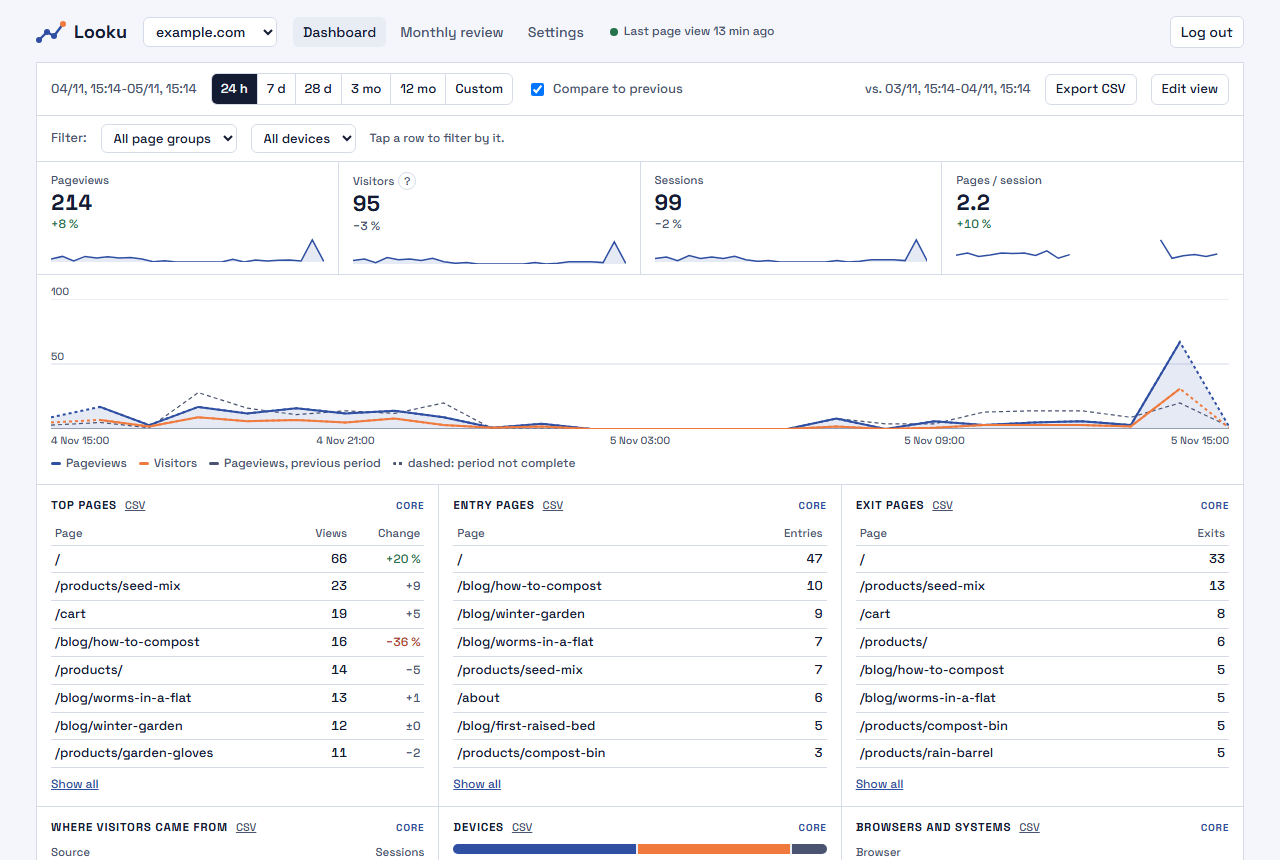
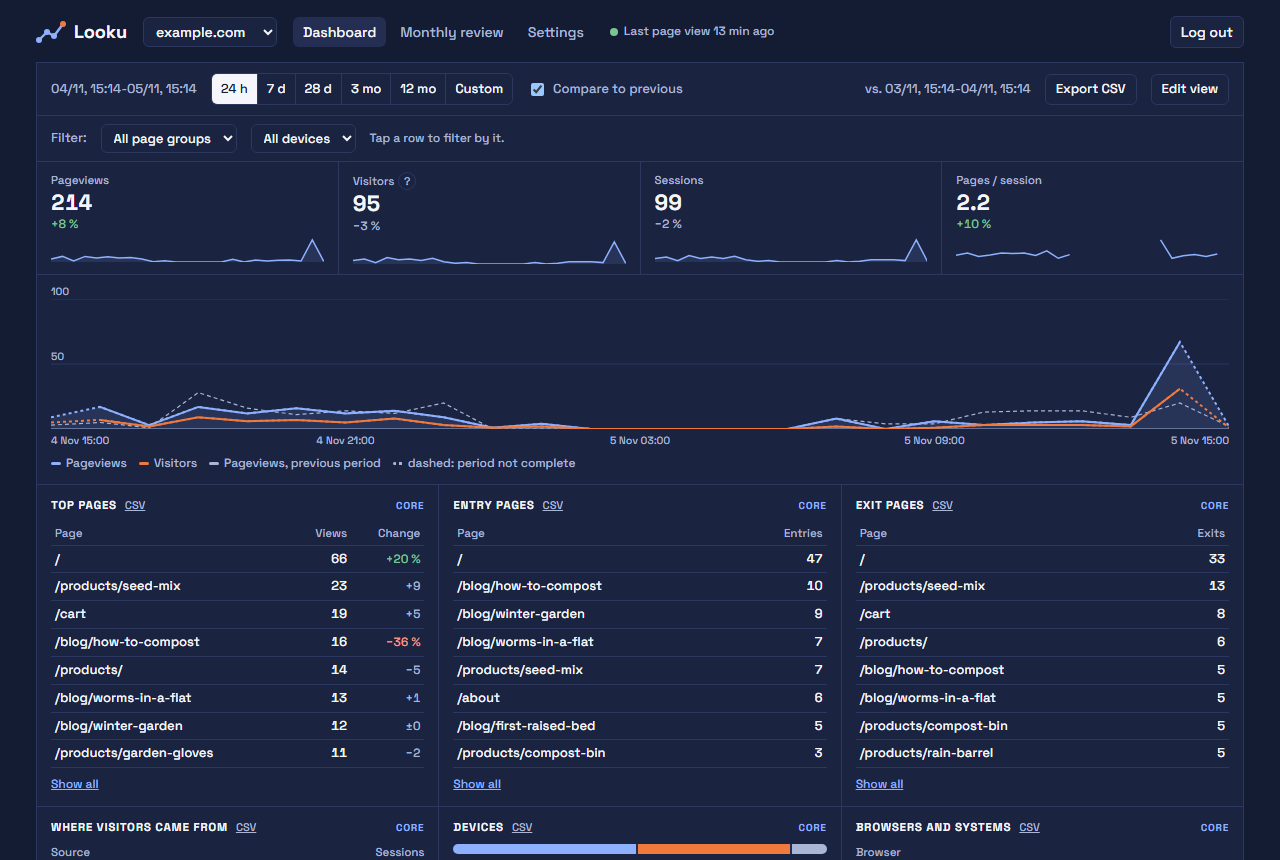
This is where we are going:
Get the tools
Section titled “Get the tools”Looku runs in Docker, a program that runs other programs in sealed boxes called containers. That way you do not install Looku’s parts on your computer one by one. You also need Git, which downloads Looku’s code.
First, open a terminal, the window where you type commands:
- Windows: open the Start menu, type
PowerShelland open Windows PowerShell. - macOS: open Terminal (Applications → Utilities).
- Linux: open your terminal app.
Keep it open; you will use it all the way through. The commands are the same on all three systems unless tabs show otherwise. To copy a command from this page, use the copy button at the top right of each box, and paste it into the terminal: right click, or Ctrl+V on Windows, Cmd+V on macOS and Ctrl+Shift+V on Linux.
Now install Docker:
Download Docker Desktop from docker.com and run the installer with its default choices. Restart the computer if it asks. Then start Docker Desktop from the Start menu, accept its terms, and wait until it says Engine running.
If it complains about virtualization, that has to be turned on in the computer’s firmware settings (BIOS or UEFI); see Docker’s troubleshooting topics.
Download Docker Desktop from docker.com. Pick Apple silicon or Intel to match your Mac (Apple menu → About This Mac → Chip or Processor). Open the file, drag Docker to Applications, start it, accept its terms, and wait until it says Engine running.
Install Docker Engine with Docker’s guide for your distribution. Then
allow your user to run Docker without sudo, and log out and back in:
sudo usermod -aG docker $USERCheck that Docker answers:
docker compose versiondocker psThe first should print Docker Compose version v2.… or a higher number, and the second a header line that starts
with CONTAINER ID. If you get an error instead:
cannot connect to the Docker daemonorerror during connect: Docker Desktop is not running yet (on Linux:sudo systemctl start docker).permission denied(Linux): log out and back in, or restart the computer.'compose' is not a docker command(Linux): Docker came from your distribution’s own package. Install it with Docker’s guide linked above instead.
Then check Git:
git --versionIf you see git version 2.…, you have it. If the command is not found: on Windows, install
Git for Windows with its default choices and open PowerShell again; on macOS, accept
the offer to install the developer tools; on Linux, sudo apt install git (Fedora: sudo dnf install git).
Start Looku
Section titled “Start Looku”-
Download Looku. This goes to your home folder, makes a folder called
lookuthere and moves you into itsdeployfolder, where the Docker files are:Terminal window cd ~git clone https://github.com/niemenjoki/Looku.git lookucd looku/deployYou see
Cloning into 'looku'...and a few lines of progress. -
Make a settings file. Looku reads its settings from a file called
.env. Start from the example:Terminal window cp .env.example .envThen open it in a text editor:
Terminal window notepad .envTerminal window open -e .envTerminal window nano .envChange one line, the one that starts with
LOOKU_DATA_DIR=, to:LOOKU_DATA_DIR=looku-dataSave and close (in nano: Ctrl+O, Enter, Ctrl+X). This keeps Looku’s database inside Docker, which is the reliable choice on a desktop computer and easy to remove afterwards.
-
Start it:
Terminal window docker compose up -dThe first time, Docker downloads Looku. This takes a minute or a few; let it run. It ends with
Container looku-ingest-1 StartedandContainer looku-dashboard-1 Started.Looku is now running in two containers. The receiver (
ingest) takes page views from websites. The dashboard is where you read the numbers.-dlets them run in the background, so you get the prompt back.If it says
port is already allocated, another program uses port 8788. ChangeLOOKU_DASHBOARD_PORTin.envto8789, run the command again, and use 8789 instead of 8788 later. -
Tell Looku about the demo site. Looku keeps the numbers of each website separately, so you add the site first:
Terminal window docker compose run --rm ingest site:add demo --domain localhost --timezone Europe/Helsinki(Use your own time zone, for example
America/New_York; it decides when a day changes in the reports.) Docker prints a line or two about a temporary container, and then Looku answers:Site demo added. Signing key (shown once):k8Jd2mQx7RfTn4WcZp1LvB9sHy6GaE0uYoXiN5tCw3EYour key is different. Copy it now: select it with the mouse and copy it (Ctrl+C on Windows, Cmd+C on macOS, Ctrl+Shift+C on Linux, where Ctrl+C alone would stop a program). Paste it somewhere for a moment. The demo site signs each page view with this key, so Looku knows the page view is genuine. You need it in step 7. If you lose it,
docker compose run --rm ingest site:rotate-key demoprints a new one. -
Turn on two extras, campaigns and reading time:
Terminal window docker compose run --rm ingest site:modules demo content,campaignsIt says
Modules of demo: perus, content, campaigns.perusis the basic module, shown as Core in the dashboard; it is always on. -
Choose a dashboard password of at least 10 characters:
Terminal window docker compose run --rm -it ingest admin:passwordIt asks
New dashboard password:. Type the password and press Enter. Nothing appears while you type, not even dots; that is on purpose. It asks only once, so type carefully. It answersPassword set. Restart `looku serve` to end existing logins.You can ignore the second sentence: nobody is logged in yet. If the password is too short, it says so; if you made a typo, just run the command again. -
Give the demo site its settings. Go to the demo’s folder and copy its example settings:
Terminal window cd ../examples/next-democp .env.example .env.localOpen
.env.localin the text editor as in step 2 (notepad .env.local,open -e .env.localornano .env.local). Change two lines so that they read like this, with your key from step 4 afterLOOKU_SIGNING_KEY=. Leave the other lines as they are:LOOKU_ENDPOINT=http://ingest:8787LOOKU_SIGNING_KEY=PASTE-YOUR-KEY-HERENo spaces around
=and no quotes (in nano, paste with Ctrl+Shift+V or a right click). Save. The file now has the three settings that any website needs to talk to Looku: where the receiver is (LOOKU_ENDPOINT), which site this is (LOOKU_SITE_ID, alreadydemo) and the key. Here the receiver’s address is simplyingest, its name inside Docker. -
Start the demo shop. Go back to the
lookufolder and start the demo in a container. It is one long line; copy all of it:Terminal window cd ../..docker run --rm -it --init --name looku-demo --network looku_default -p 127.0.0.1:3000:3000 -v "${PWD}:/src:ro" node:22-bookworm-slim sh -c "cp -r /src /app && cd /app/examples/next-demo && npm install && npm run build && npm start"This starts a container with Node.js next to Looku, copies the demo’s code into it, and builds and starts the demo. Nothing is written to your own folders. You do not need to understand every part of the command. The first time takes a few minutes, and a lot of text scrolls by, including
npm noticelines and a note about Next.js telemetry; both are normal and need nothing from you. It is ready when you see:- Local: http://localhost:3000✓ Ready in …If it says
port is already allocated, another program uses port 3000. Change127.0.0.1:3000:3000in the command to127.0.0.1:3001:3000, run it again, and use 3001 instead of 3000 later.Leave this window open: the demo runs in it.
Visit the shop
Section titled “Visit the shop”Now be a visitor. The demo shop is in Finnish: Etusivu is the front page, Tuotteet the products and Oppaat the guides. Leave the Kampanjalinkki link alone; it starts a second demo campaign.
-
Open a private window in your browser (Ctrl+Shift+N in Chrome and Edge, Ctrl+Shift+P in Firefox, Cmd+Shift+N in Safari). Open this link in it: http://localhost:3000/tuotteet?utm_source=news&utm_campaign=demo.
The end of the link (
utm_campaign=demo) is a campaign tag, like one you would put in a newsletter link. Looku credits the whole visit to the campaign it started from, which is why you open this link first. -
Click through a few pages of the shop.
-
At the bottom of the page, select Salli (Finnish for allow). This is the demo’s consent question: only visitors who allow it have their reading time measured. Then open Oppaat (the guides), scroll to the bottom and stay on the page for about 30 seconds.
See your visits
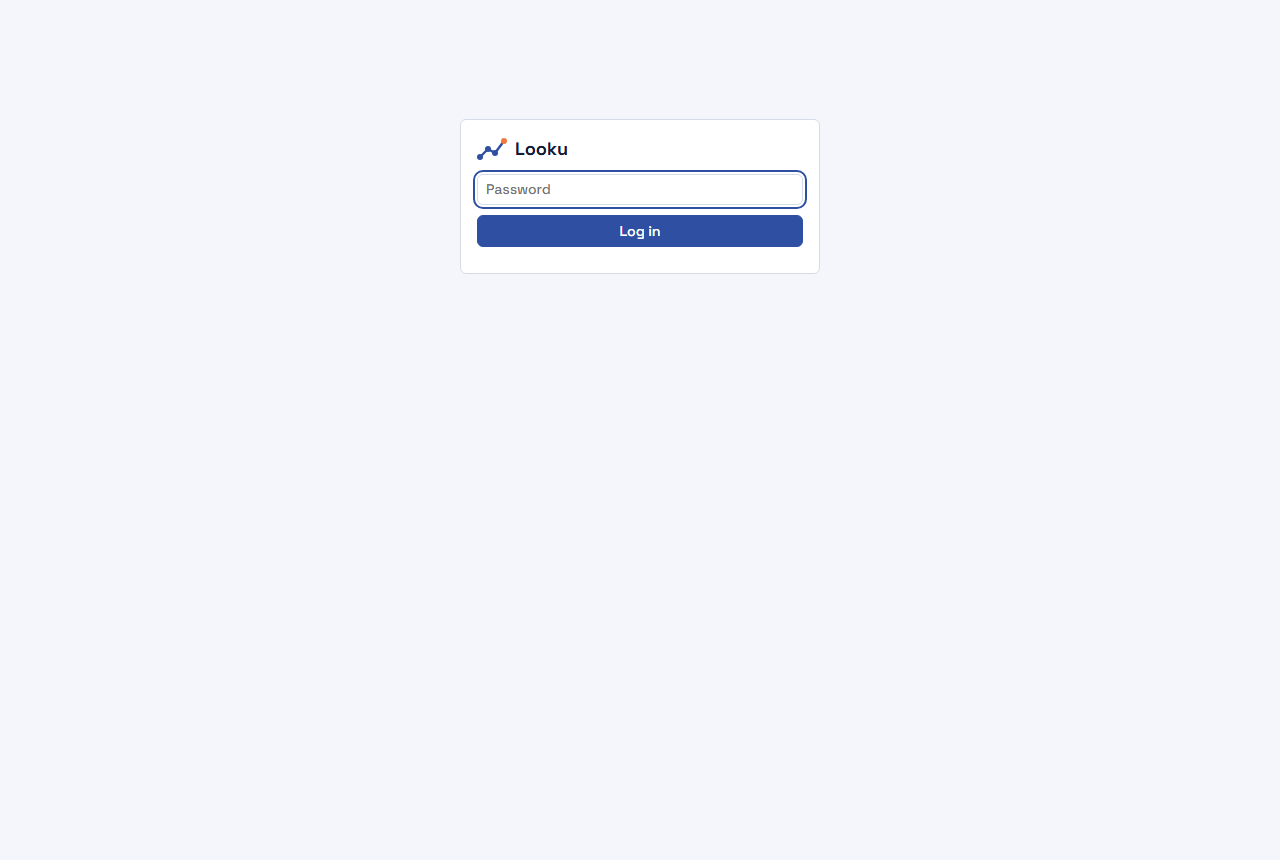
Section titled “See your visits”Open the dashboard at http://127.0.0.1:8788. You see the login page:
Log in with your password. The front page shows the page views, visitors and sessions of the last 24 hours, with a chart by the hour below. You have only a handful of page views from today, so your chart is nearly flat. On a real site with traffic it looks like this:
Scroll down. Top pages lists the pages you opened. Further down, the Campaigns card (not the
Campaigns (UTM) list, which is part of the basic numbers) shows the campaign demo with your visit:
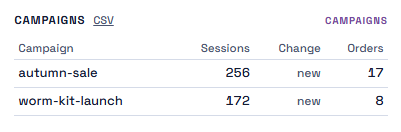
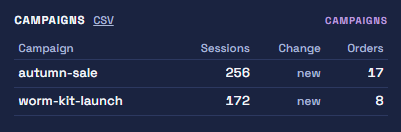
The Reading time and scroll card has your guide page, /oppaat, because you allowed it. Pages you opened before
selecting Salli are not there. Reading time can take a minute to appear. The picture below is from a site with
blog pages.
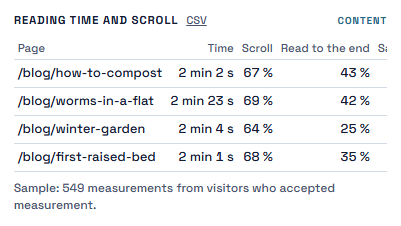
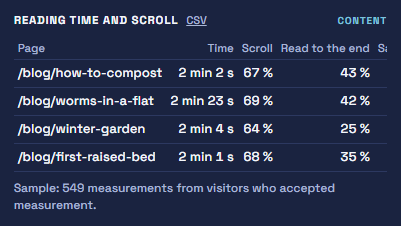
Looku set no cookie in your browser: the demo’s server sent the page views directly to Looku. The only thing the demo stored in your browser is your consent choice.
Nothing there?
Section titled “Nothing there?”- Look at the demo’s window: an error there usually says what is wrong.
- Check that the key in
.env.localis exactly the one from step 4. After a change, stop the demo with Ctrl+C and run the longdocker runcommand again. - Brave, and some browser settings, send a “do not track” signal, and Looku then skips you on purpose. Try another browser.
- The receiver’s own messages: open a second terminal window and run
cd ~/looku/deploy, thendocker compose logs ingest.
Clean up
Section titled “Clean up”-
Stop the demo with Ctrl+C in its window.
-
Remove Looku and its data (you are in the
lookufolder):Terminal window cd deploydocker compose down -vdocker image rm ghcr.io/niemenjoki/looku:0.9 node:22-bookworm-slimYou see lines ending with
RemovedandDeleted. If you use thenode:22-bookworm-slimimage for something else, leave it out of the last command. -
Delete the folder:
Terminal window cd ~Remove-Item -Recurse -Force ~\lookuTerminal window cd ~rm -rf ~/lookuTerminal window cd ~rm -rf ~/looku
You can uninstall Docker Desktop too if you do not need it.
What next?
Section titled “What next?”You have seen the whole chain: a website sends signed page views to the receiver, and you read them in the dashboard. For your own site, Looku runs on a server that is always on, and the receiver gets a public address.
- 2. Your first installation on a home server takes you through that step by step.
- What you can do with Looku shows what to turn on for your needs.
A Windows or Mac desktop is fine for trying Looku, but these guides do not use it as the server: a desktop computer sleeps, restarts for updates, and Docker Desktop starts only after someone logs in.